Update a request status
Admin users can add a note and change the status of a request simultaneously. This sends users one email documenting both the updated note and status change. For example, you want to add a note and mark a request complete simultaneously.
To add a note and change the status from the All Request details:
- Select Requests > All Requests.
- Find a request by searching or using a filter(s).
Note: To view all requests, in the column of your choice, click . In the filter () section, select Check All, and then click Filter.
- On the request row you want, under Status, click the current status.
- On the Request - Status pop-up, do the following:
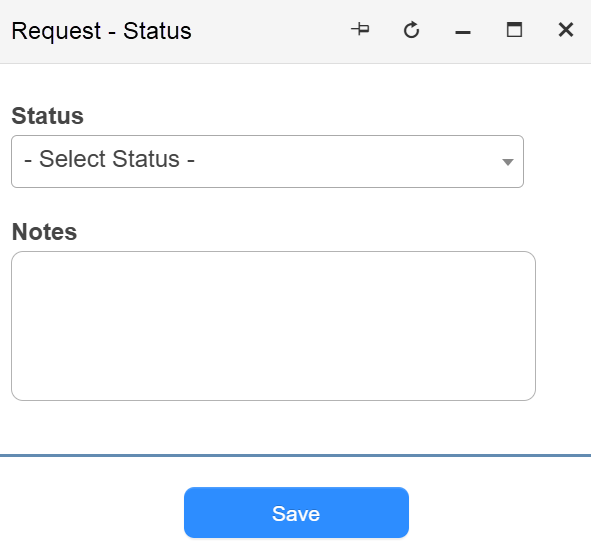
- Select the desired status.
- Enter any notes.
- Click Save.
To add a note and change the status from the Request details page:
- Select Requests > All Requests.
- Find a request by searching or using a filter(s).
Note: To view all requests, in the column of your choice, click . In the filter () section, select Check All, and then click Filter.
- Click on the Request ID. The Request Details page appears.
- Enter the note.
- Change the Status drop-down to any of the following:
- Approve
- Cancel
- Complete
- Complete & Close
- On Hold